Simple agar.io Bot Tutorial
Saw that small code snippet on our start page? In this tutorial, we’ll program something quite similar: a super basic agar.io bot script.
agar.io is an online browser game where you start as a small blob and become bigger by “eating” other blobs. Once big enough, you can even start “eating” other players.
While winning a game is difficult, writing a simple bot for educational purposes is simple.
In this tutorial, we will use Botfather’s Browser API, Vision API, and Helper API.
Step 1: Loading the game
First, our bot needs a browser. We create one using the Browser constructor and give it a name. The name labels the browser in Botfather’s “Browsers” tab. Next, we load the game’s website using the browser’s loadUrl method. This method is asynchronous, which means that it does not wait for the website to finish loading.
browser.loadUrl("http://agar.io/");But we want the bot to wait for the website to finish loading. We could use a method such as Helper.sleep to wait for some seconds. But depending on the user’s internet connection, we might be waiting too long or not long enough.
browser.loadUrl("http://agar.io/");
Helper.sleep(10); // Wait for 10 seconds. This might be too long or not long enough for the website to load.
Instead, we use the browser.finishLoading method to wait for the website to finish loading. That way, the script will continue once the website has finished loading.
browser.loadUrl("http://agar.io/");
browser.finishLoading(); // Wait for the website to finish loading.
By default, the browser.finishLoading method returns false after 30 seconds if the website takes longer to load. Read the Browser API documentation to learn more.
Step 2: Start the game
After loading the game’s website, we’re presented with the game’s start screen. Here we have to click the play button and optionally enter a username.
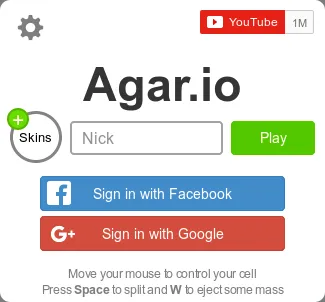
There are two methods to solve this “problem”. We could either take a screenshot, find the play button, and click at its location, or execute some JavaScript in the browser to submit the login form.
While executing JavaScript is the faster and more robust way, it’s not always possible. Executing JavaScript only works on websites, neither on Android nor on the desktop. Taking screenshots, finding subimages (templates) in them, and clicking them always works.
Using browser JavaScript
As shown on Botfather’s start page, we just have to find the HTML play button and click it using JavaScript. If you know HTML (Hypertext Markup Language), this is straightforward for you: Just write a little JavaScript code snippet and execute it using the browser.executeJavascript method.
For newcomers, this might be confusing: We’re writing bot scripts in JavaScript and sending JavaScript to the browser to execute it there (dafuq?). If you don’t know HTML, you might want to skip this section and look at Using image recognition instead.
The play button element’s ID is play. Using document.getElementById, we can get a reference to the element and call its .click method to click it.
var click_script = "document.getElementById('play').click();";
browser.executeJavascript(click_script);
Using image recognition
Mastering image recognition is what you want in order to create good bots. We’ll employ a method called template matching. To do so, we need a screenshot of the browser and a smaller image, called a template, that we want to find in the screenshot.
To get good results, called matches, you want your template to look as distinct as possible. The template must look the same as in the screenshot. Looking for a scaled version of it won’t work.
To take a screenshot of the browser, we use the browser.takeScreenshot method. It will return an Image object. We store the screenshot in a variable called screenshot.
var screenshot = browser.takeScreenshot();In the screenshot, we’ll look for the template of the play button shown below. Download it and put it next to your script file.

To load the play button’s template image, we use the Image constructor. We store the loaded template Image object in a variable called template.
var template = new Image("play-button.png");It’s time to use one of the Vision API methods. Vision.findMatch takes three parameters: a screenshot, a template, and a score, and returns a Match object.
The match object will tell us where the template has been found in the screenshot. If there are multiple matches, the best one is returned.
The score tells the Vision.findMatch method how good a match must be at least. A score of 0.5 means: the template must match something in the screenshot by at least 50%. We want the template to match by at least 95%.
var match = Vision.findMatch(screenshot, template, 0.95);Using the Match.isValid method, we can check whether the play button could be found.
To click the play button, we use the browser.leftClick method, which takes a Point object. We want to click the center of the play button match. To do so, we use two methods: Match.getRect and Rect.getCenter(). Read the Rect object’s documentation to learn more.
// Complete code using image recognition:

var browser = new Browser("agar.io");
browser.loadUrl("http://agar.io/");
browser.finishLoading();

var screenshot = browser.takeScreenshot();
var template = new Image("play-button.png");

var match = Vision.findMatch(screenshot, template, 0.95);

if (match.isValid()) {
  var play_button_position = match.getRect().getCenter();
  browser.leftClick(play_button_position);
}
Step 3: Play the actual game
work in progress…
Step 4: Respawn
work in progress…